How to embed a live music player on your website with StreamExpose
Enable the StreamExpose Player destination, reserve your listening link and embed a live audio player on your website.
StreamExpose team · Updated
The short answer
Enable StreamExpose Player in the stream’s destinations to obtain a public listening link and embed code. Save the stream to keep the reserved link, then launch it to make audio available. The player is an audio destination, not a YouTube video embed. It is currently in beta with a limit of 20 simultaneous listening sessions per stream.
Before you start
- A StreamExpose account and access to the player destination.
- Permission to add an iframe and, for automatic resizing, the supplied script to your website.
- Music you are entitled to broadcast and a plan allowing your chosen combination of destinations.
Step by step
Console screenshots are in English and use demonstration channels and tracks. No private stream keys are shown.
1. Enable the audio player destination
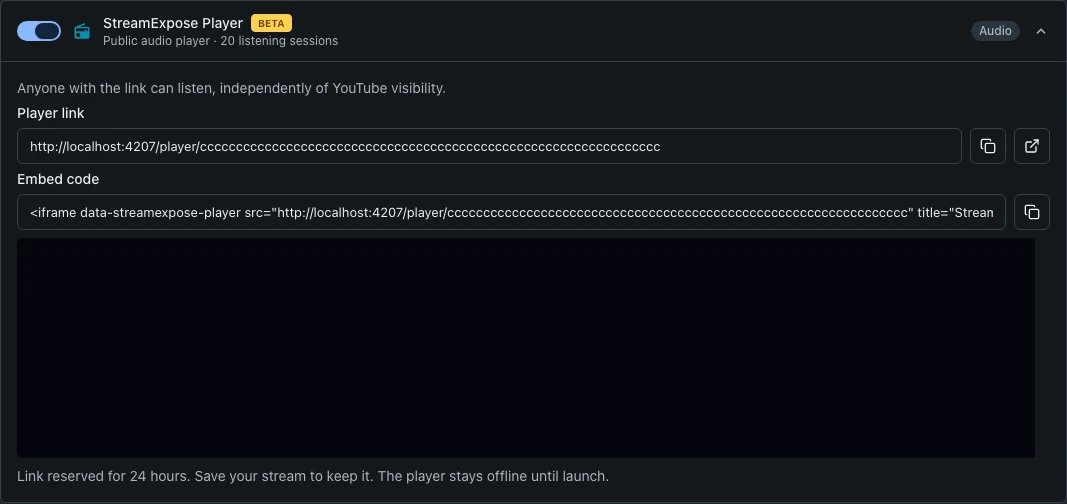
Open Setup and enable StreamExpose Player. The Console reserves a link without launching a stream. If your plan allows only one destination, selecting the player replaces the other enabled destination.
2. Save the reserved listening link
Copy Player link for a standalone listening page or Embed code for your website. An unsaved reservation lasts 24 hours. Save the draft to keep the link associated with the stream. Anyone with the listening link can access it, independently of YouTube visibility.
3. Complete the playlist and launch
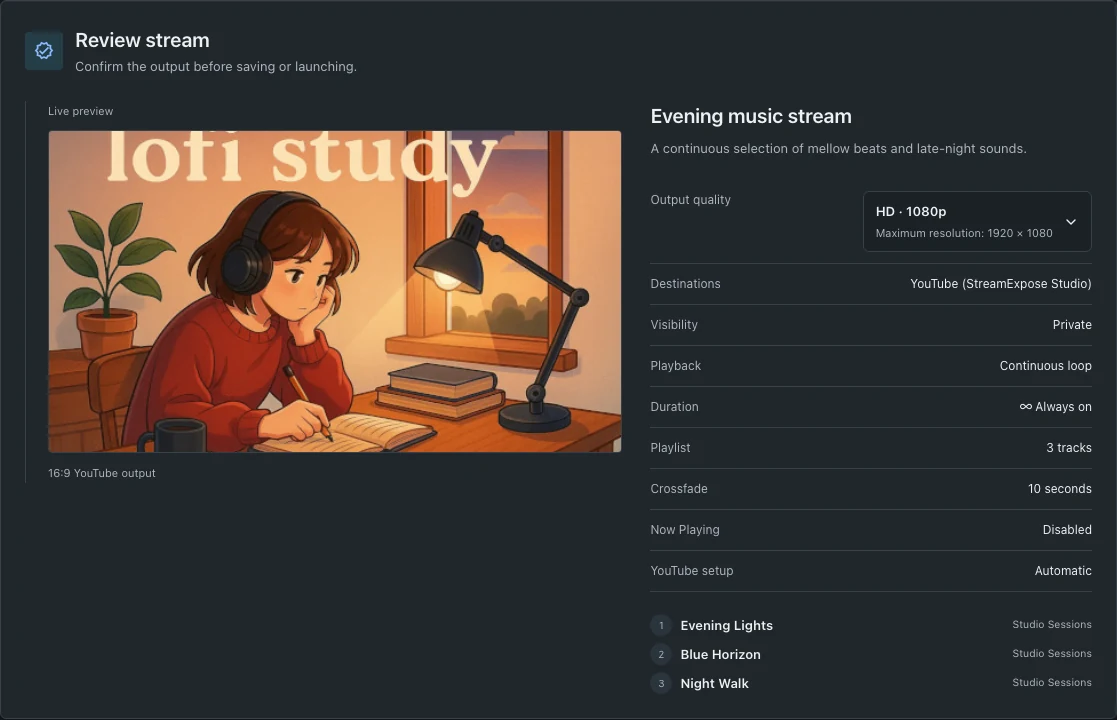
Choose a visual and add your audio tracks, then review and launch. The player remains offline while the stream is a draft or is preparing. Listeners must press Play; browsers may block automatic audio playback.
4. Embed and test on your website
Paste the supplied code into an HTML or embed block. Keep the iframe title and supplied player URL. If your website blocks the resizing script, use the iframe with a sufficient fixed height. Test playback on mobile and desktop from a published page, not just an editor preview.
Questions and troubleshooting
Does the player work without a YouTube destination?
Yes. It is an independent public audio destination. You can use it alone, or alongside external destinations when your plan allows simultaneous broadcasting.
Can I embed it directly in a social-media post?
Not generally. Social platforms control which embeds their posts accept. Share the listening link there; embed the iframe on a website where you control the HTML.
Why does the player not play immediately?
A reserved URL alone is not a live stream. Check that the stream is launched, preparation has finished and the player destination is active. The listener must also start playback; the current beta limit is 20 simultaneous sessions.