How to loop a music playlist as a continuous live stream
Build a looping live music playlist with your uploads or catalog tracks, custom track order, crossfade and a visual background.
StreamExpose team · Updated
The short answer
Choose Continuous loop in StreamExpose to repeat an audio playlist on a live destination. The servers keep playing it after you close your browser. You can use your own uploads or catalog tracks, choose the track order and adjust crossfade. A playlist stored in your music library is not a live broadcast until you configure and launch a stream.
Before you start
- An available stream slot and at least one enabled destination.
- Audio files or catalog tracks you are permitted to broadcast.
- A static image or, on an eligible paid plan, a looping video background.
Step by step
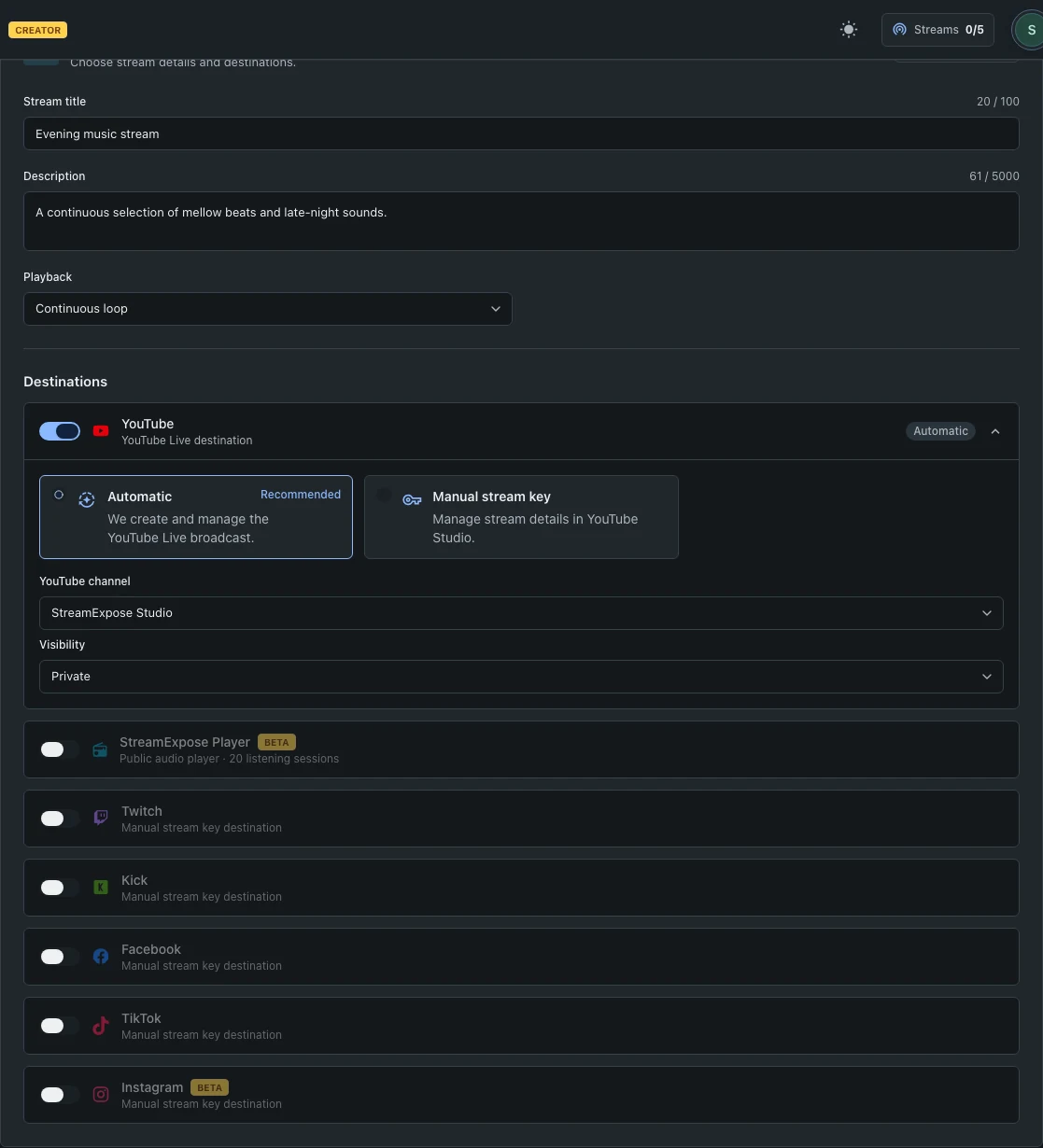
Console screenshots are in English and use demonstration channels and tracks. No private stream keys are shown.
1. Decide whether the playlist should repeat
In Setup, choose Continuous loop for a 24/7-style station. Use Play once and Stop after the playlist for a finite listening session. Select the destination before continuing.
2. Add and arrange your tracks
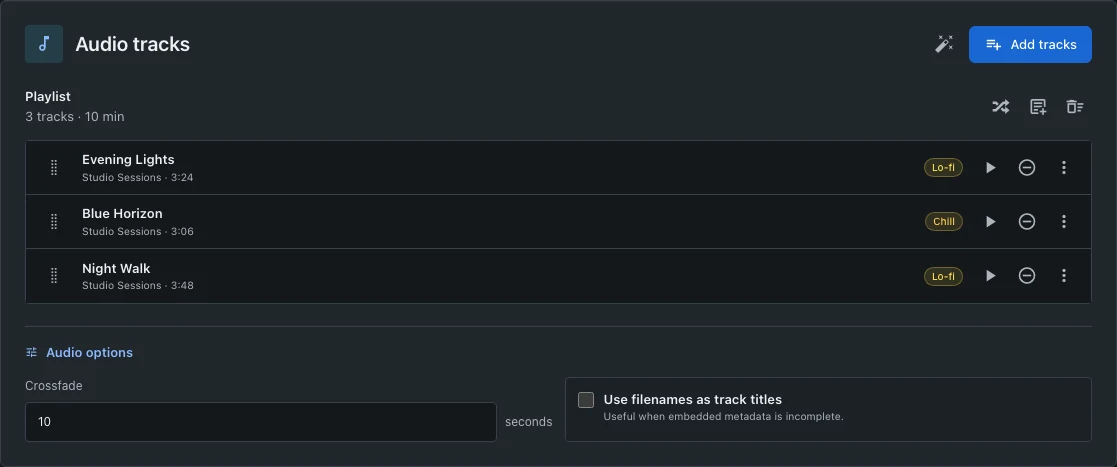
Move to Audio after choosing your visual. Add tracks from Samples or My library, or upload audio. Review titles and durations, drag tracks into the intended order and remove unwanted duplicates. Track reordering is available on every plan.
3. Adjust transitions and titles
Open audio options to set crossfade. The default is 10 seconds; choose a value appropriate for your recordings. Use filenames as track titles only when those filenames are suitable for listeners. A crossfade is a transition, not a guarantee of beat-matched mixing.
4. Preview and launch the complete stream
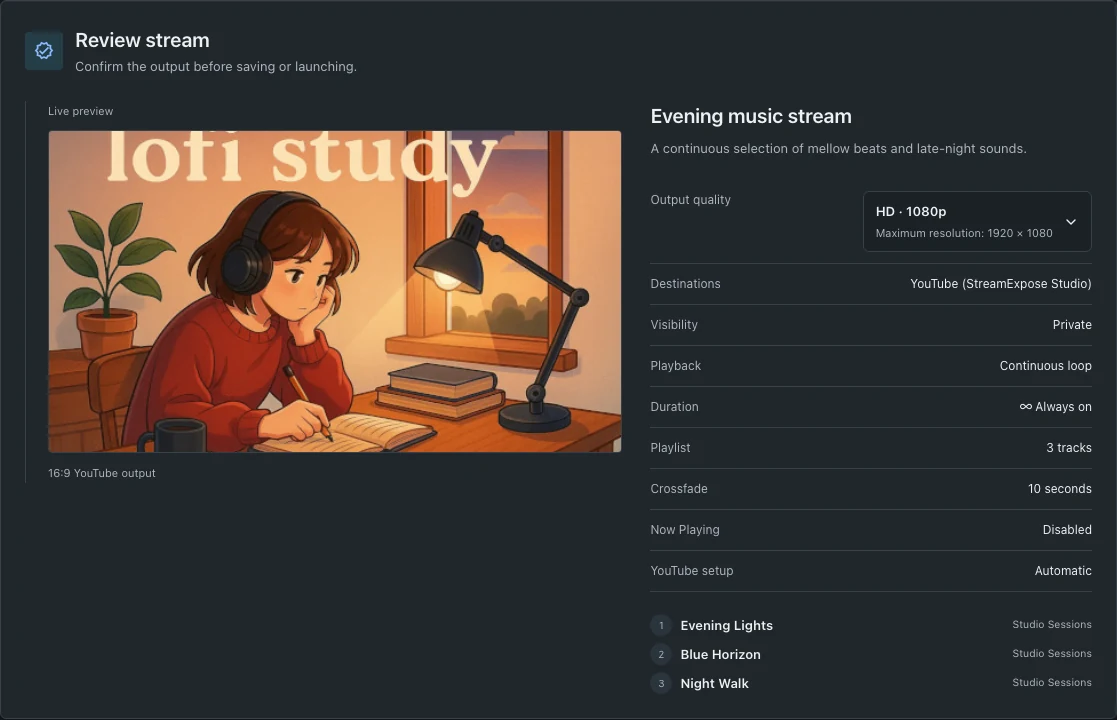
Review the artwork, tracks and destination together. Save a draft if you are not ready, or launch when the setup is complete. Watch the destination status after preparation; adding tracks to the library alone never starts broadcasting.
Questions and troubleshooting
What if I do not have my own music?
You can start with the catalog available in the Console. Check the applicable usage terms for your intended destination. Do not assume that any external playlist or commercial recording is licensed for rebroadcasting.
Can I use a video’s original sound instead of adding tracks?
This guide covers audio playlists with a visual background. Do not assume that selecting a video automatically broadcasts its original soundtrack. Use the currently available audio controls and preview the result.
Will a copyright claim disappear if I change the stream settings?
No. Playback settings do not grant rights to audio or video. If a platform interrupts a broadcast, review its notice and the rights to your content before launching again.