How to connect multiple YouTube channels and choose one per live stream
Add YouTube channels to one StreamExpose account and select a connected channel for each automatically created live music stream.
StreamExpose team · Updated
The short answer
StreamExpose lets you connect several YouTube channels to the same account and choose a channel for each stream in Automatic mode. Manage the connections in Account, then use the channel selector in the stream’s YouTube destination. Adding a channel does not create a new StreamExpose subscription or increase your simultaneous-stream limit.
Before you start
- A StreamExpose account with access to the YouTube channels you want to use.
- Live streaming enabled separately on each selected channel.
- Enough stream slots for the broadcasts you intend to run at the same time.
Step by step
Console screenshots are in English and use demonstration channels and tracks. No private stream keys are shown.
1. Open your YouTube connections
Go to Account in the Console and open the YouTube section under social connections. Review the listed channels rather than relying on the name of your Google sign-in account.

2. Add another channel
Choose Add a channel and follow the authorization flow. You can select another Google account or an eligible channel offered by Google. Confirm the intended identity and permissions. Return to the same StreamExpose account after authorization.
3. Select a channel for the stream
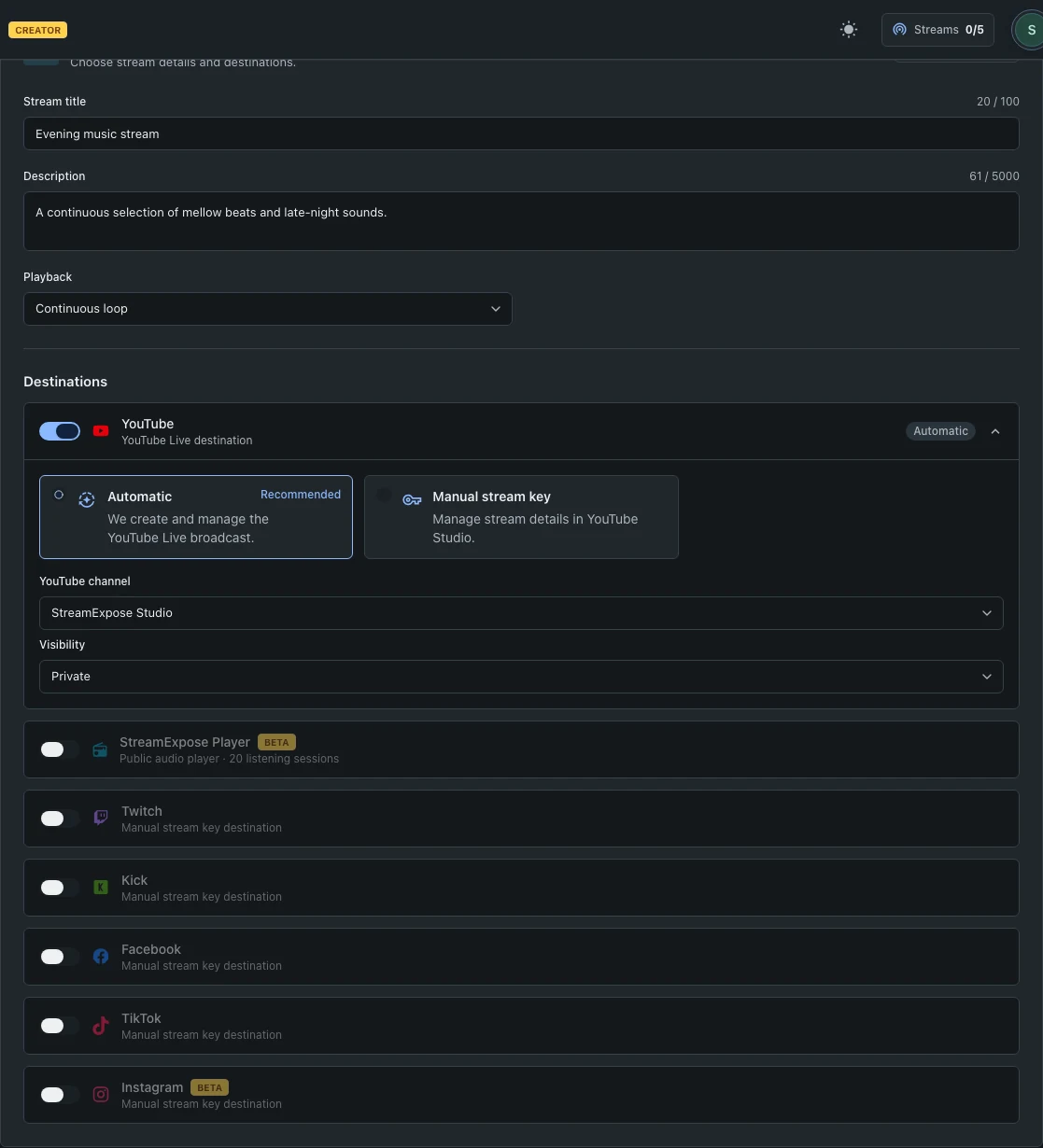
Open Create stream, enable YouTube and choose Automatic. Select the connected channel in the dropdown. The Add a channel entry is also available there. Manual mode instead uses the stream key from the destination channel.
4. Verify before launching
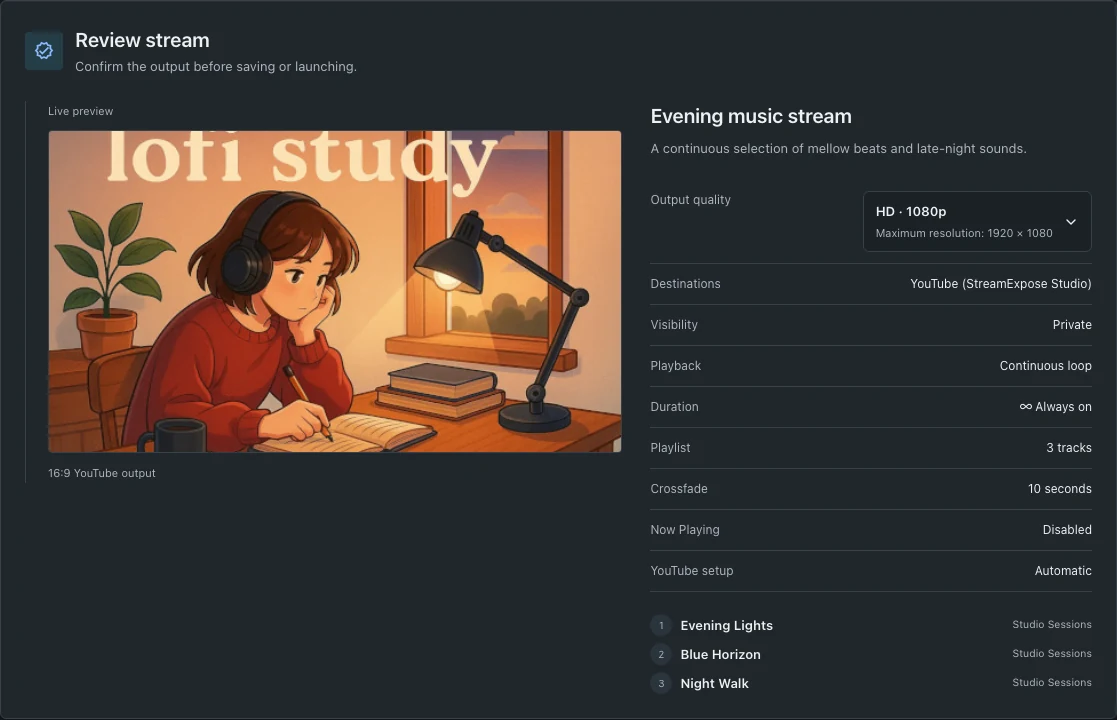
Check the selected channel and visibility in Review. Launch only after confirming them. For an active stream, channel changes may be locked; do not assume you can move an existing live broadcast between channels without a new setup.
Questions and troubleshooting
Can I connect channels from different Google email addresses?
Yes, when the authorization flow gives you access to them. Connect each one from your existing StreamExpose account. Verify which channel was authorized; an email address and a YouTube channel are not the same identity.
Does one channel connection allow unlimited simultaneous streams?
No. Channel connections and concurrent broadcasts are different. Your StreamExpose plan limits simultaneous streams, and each platform applies its own eligibility rules. Check the current pricing page before planning several live stations.
Why is a connected channel not ready for live streaming?
Permission to access the channel does not guarantee live eligibility. Check YouTube live activation, restrictions and the account used during authorization. Reconnect only if the connection itself has expired or lacks the required access.