How to create a 24/7 YouTube music stream without leaving your PC on
Create a YouTube live music stream from the cloud: connect a channel, choose your visual and playlist, review settings and launch.
StreamExpose team · Updated
The short answer
StreamExpose broadcasts a repeating music playlist and visual from its servers, not your computer. Connect a YouTube channel, enable the YouTube destination, choose a background and audio tracks, then launch from the Console. You can close your browser after launch. YouTube live access and rights to your media are still required.
Before you start
- A StreamExpose account and an available stream slot.
- A YouTube channel eligible for live streaming. First-time activation can take up to 24 hours.
- Music and a background you are entitled to broadcast. A streaming service does not remove copyright restrictions.
Step by step
Console screenshots are in English and use demonstration channels and tracks. No private stream keys are shown.
1. Connect the right YouTube channel
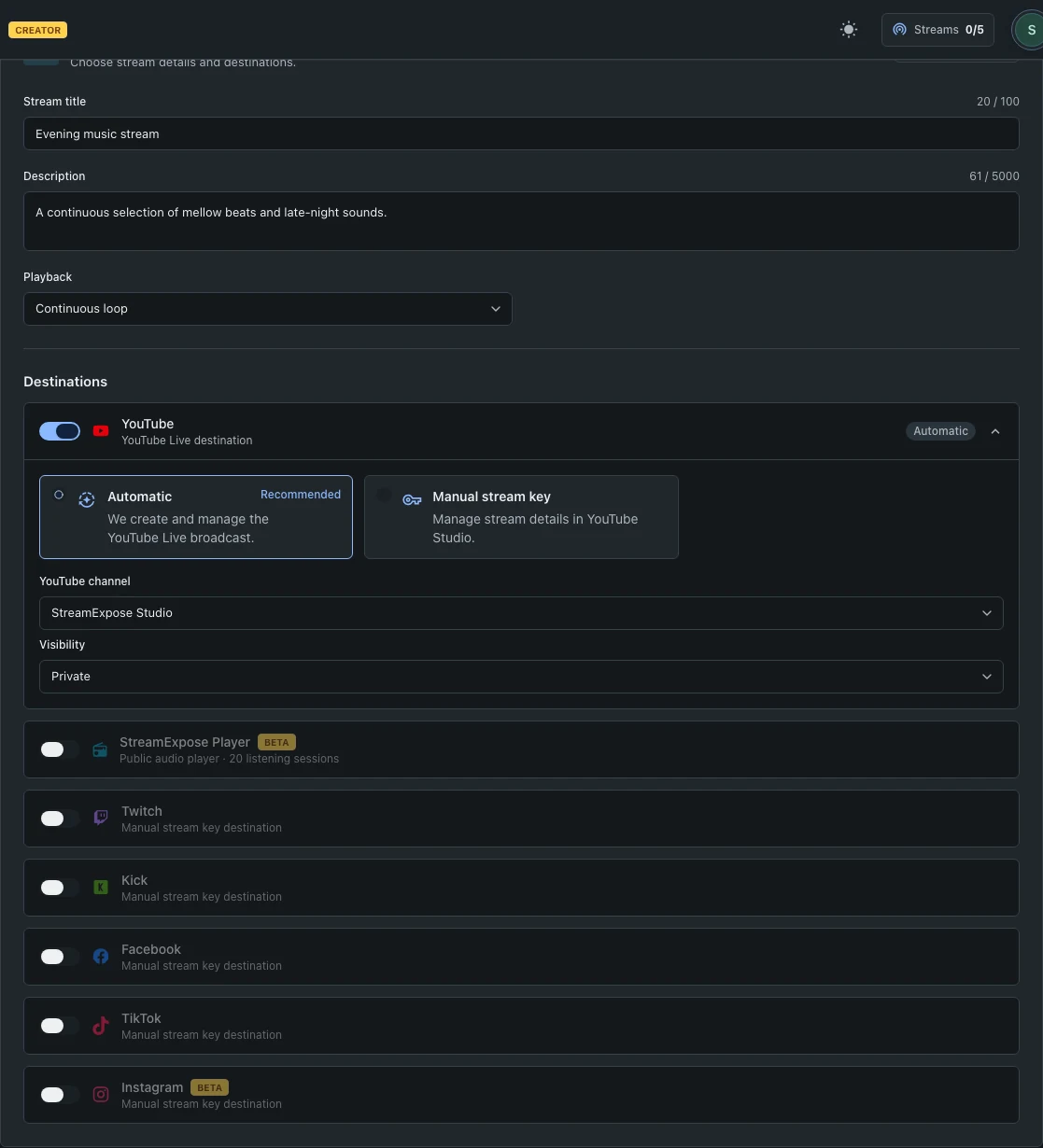
Open Create stream, give your stream a title and enable YouTube. Choose Automatic and select your connected channel. Use Connect or Add a channel if needed. Signing in with Google alone does not necessarily grant YouTube access.
2. Choose the visual before the playlist
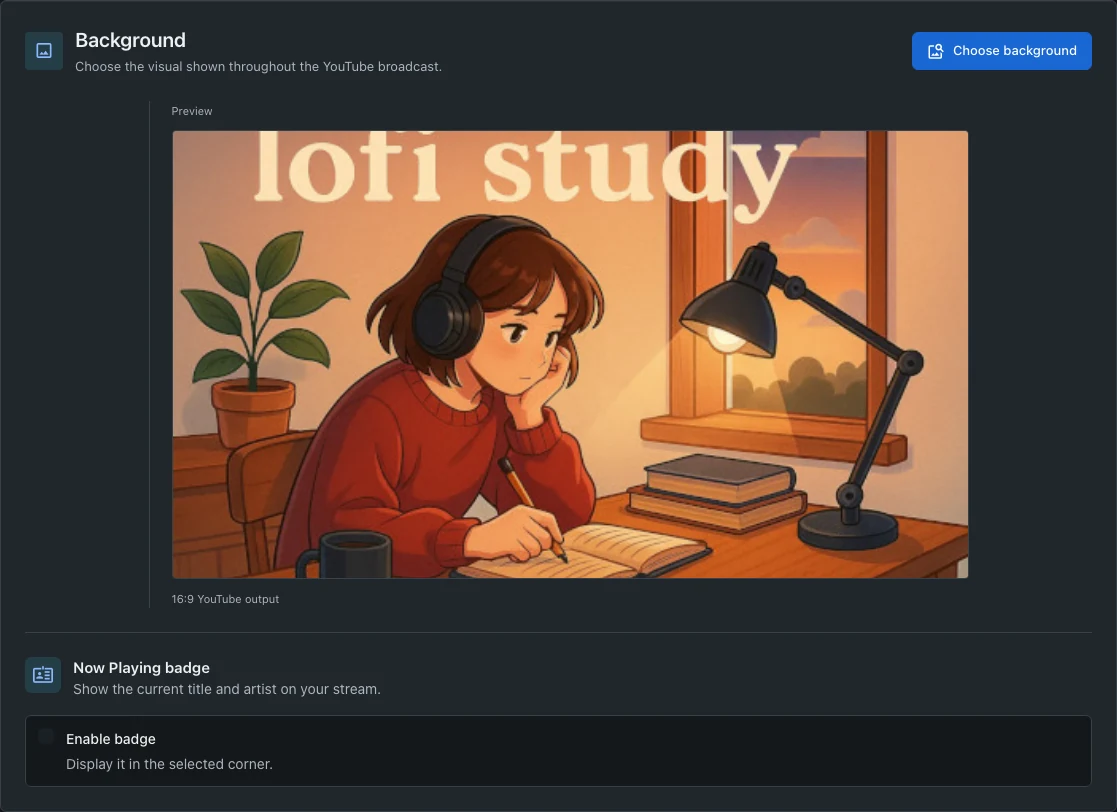
Continue to Visual. Choose a static background from the catalog or your library. You can upload your own image; video backgrounds require an eligible paid plan. Preview the composition before moving to Audio.
3. Build a continuous music playlist
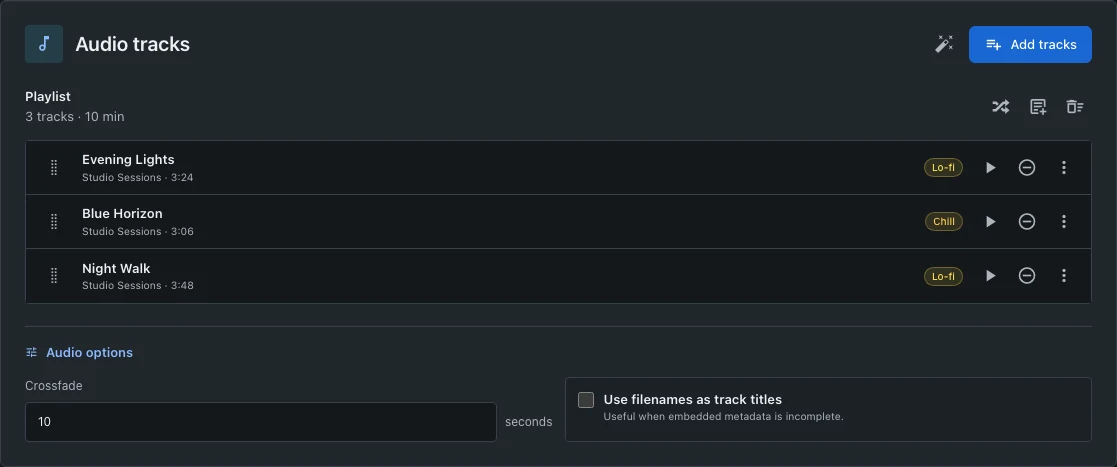
In Audio, add catalog tracks or upload your own music. Reorder the tracks and adjust crossfade in audio options if needed. In Setup, Continuous loop repeats the playlist; Play once with Stop after the playlist ends the stream.
4. Review, launch and check the destination
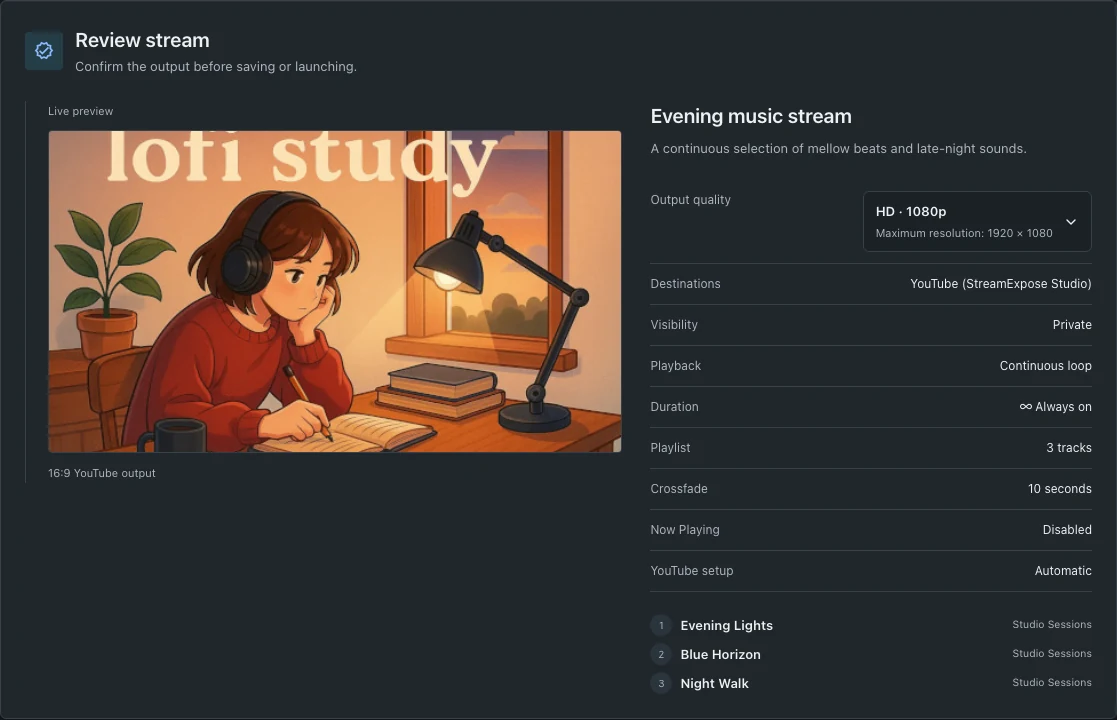
Review the channel, visibility, playlist and output quality. Choose HD unless you need and have access to 4K. Launch once and allow preparation to finish. Check YouTube’s destination status and open the live link. An enabled destination is not proof that the platform is receiving the stream.
Questions and troubleshooting
Can I turn off my computer after launch?
Yes. StreamExpose servers handle playback and broadcasting. Your computer and browser are needed to configure the stream, not to keep it running. Platform limits, service availability and your plan still apply.
Why does YouTube ask me to activate live streaming?
Channel connection and live eligibility are separate. Enable live streaming on the selected YouTube channel, wait for activation if required, then return to the Console. Reconnecting cannot bypass a platform restriction.
Does automatic creation make my stream public?
No. Check Visibility in the automatic YouTube options and select Public if that is your intent. The independent StreamExpose audio player has its own public-link behavior.